
This guide provides step-by-step instructions on how to securely store and share files in the Crescent 360 Vault. It explains how to create new folders, upload files, preview and download files, and differentiate between shared and private documents. Viewing this guide will help you effectively manage their documents while ensuring privacy and convenience.
1. Access your document Vault using the menu tab.

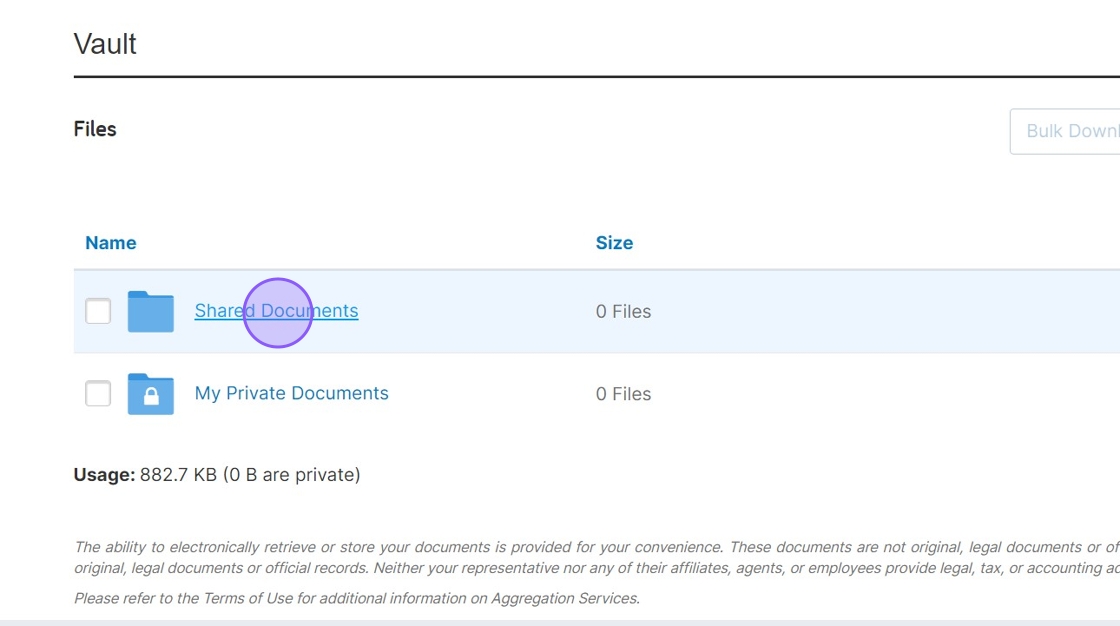
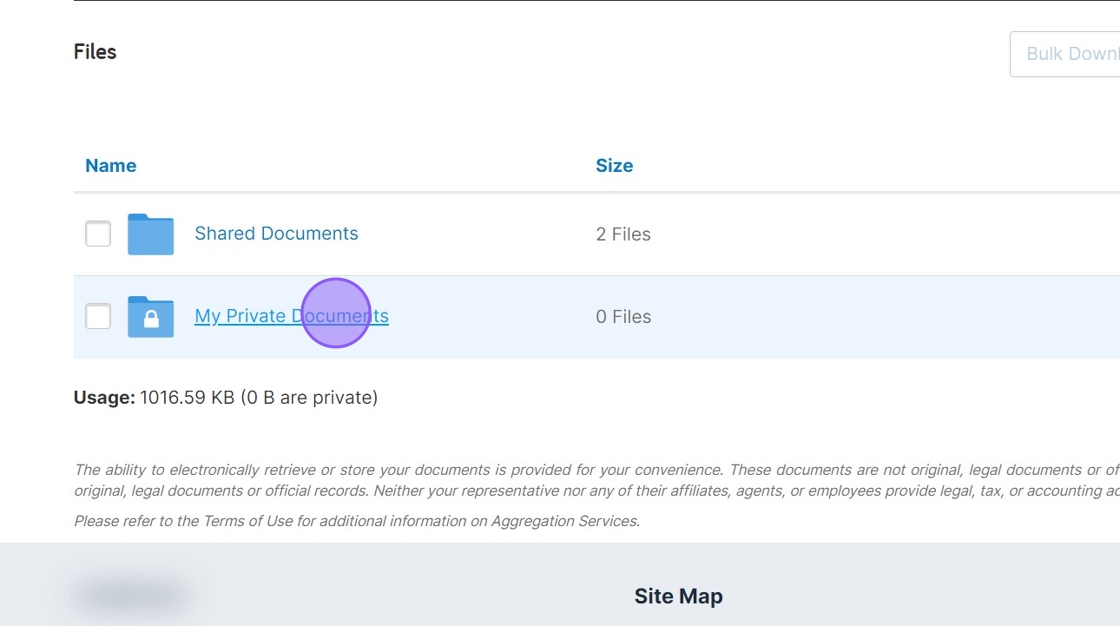
2. You can share documents with your Wealth Advisor in the Shared Documents folder in your vault. All files and folders placed in Shared Documents are automatically available for your Wealth Advisor to access. The My Private Documents folder is yours to store important files and are not visible to your Wealth Advisor or any other Crescent Wealth employee.

3. Click on “Shared Documents to open the folder.
4. Click “New Folder” to create new folders for easy organization.

5. Give your folder a name and then click on Create.

6. Let’s place a file in the folder we just created. Click on the folder name to open it.

7. Click “Upload” to start uploading. You can upload individual files or a folder from your computer. In the pop-up file explorer window, select the file or folder you wish to upload and click on Open.

8. Once files are uploaded to your Vault, you can preview them by clicking on the file name. You can also download any files or folders from this view.

9. Let’s go back to the main Vault page by clicking on the Files link in the breadcrumb as shown below.

10. Click “My Private Documents”
When your wealth carries complexity, your advisory relationship should carry clarity.